
Live sessions
Everyone plays from their phone. You run the show.
Put the game on the TV at a meetup or party, the big screen at an event, or share it on a call. Guests scan one QR code, play from their own phones and watch the leaderboard move while you run the show. No app, no account.
Planning an event? Read the Event Playbook
Step 1 of 5
Create a live session
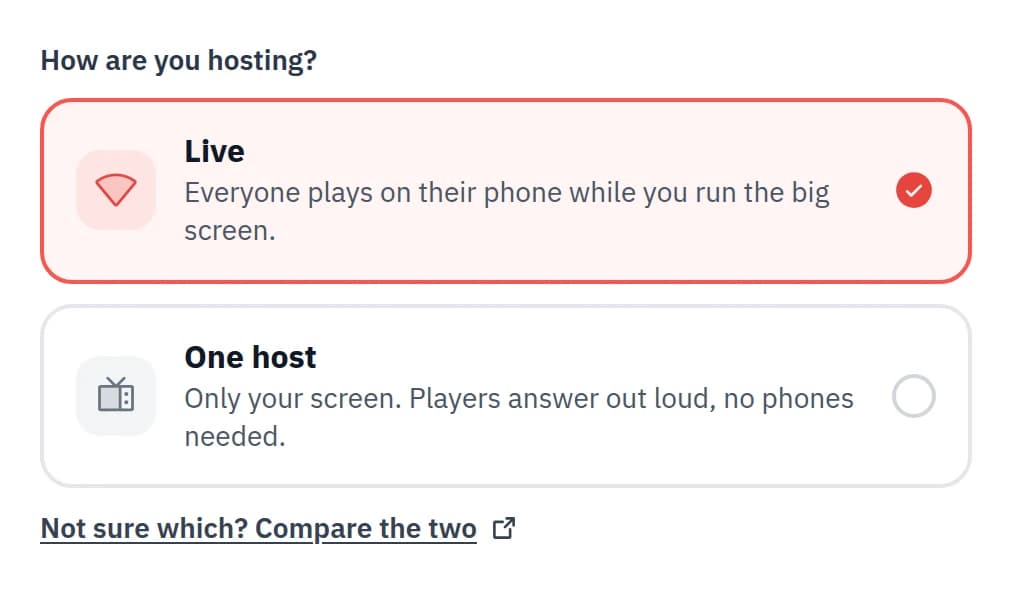
Start from the homepage or your dashboard, name your session and pick Live.
Live connects your host screen to every player's phone. Start now to open your lobby straight away, or schedule it for later and share the link ahead of time.
In person. At a meetup, a party or the office, put your host screen on the TV or the biggest display you have.
On a call. Share your screen with sound and drop the join link in the chat.
Step 2 of 5
Guests join with one scan
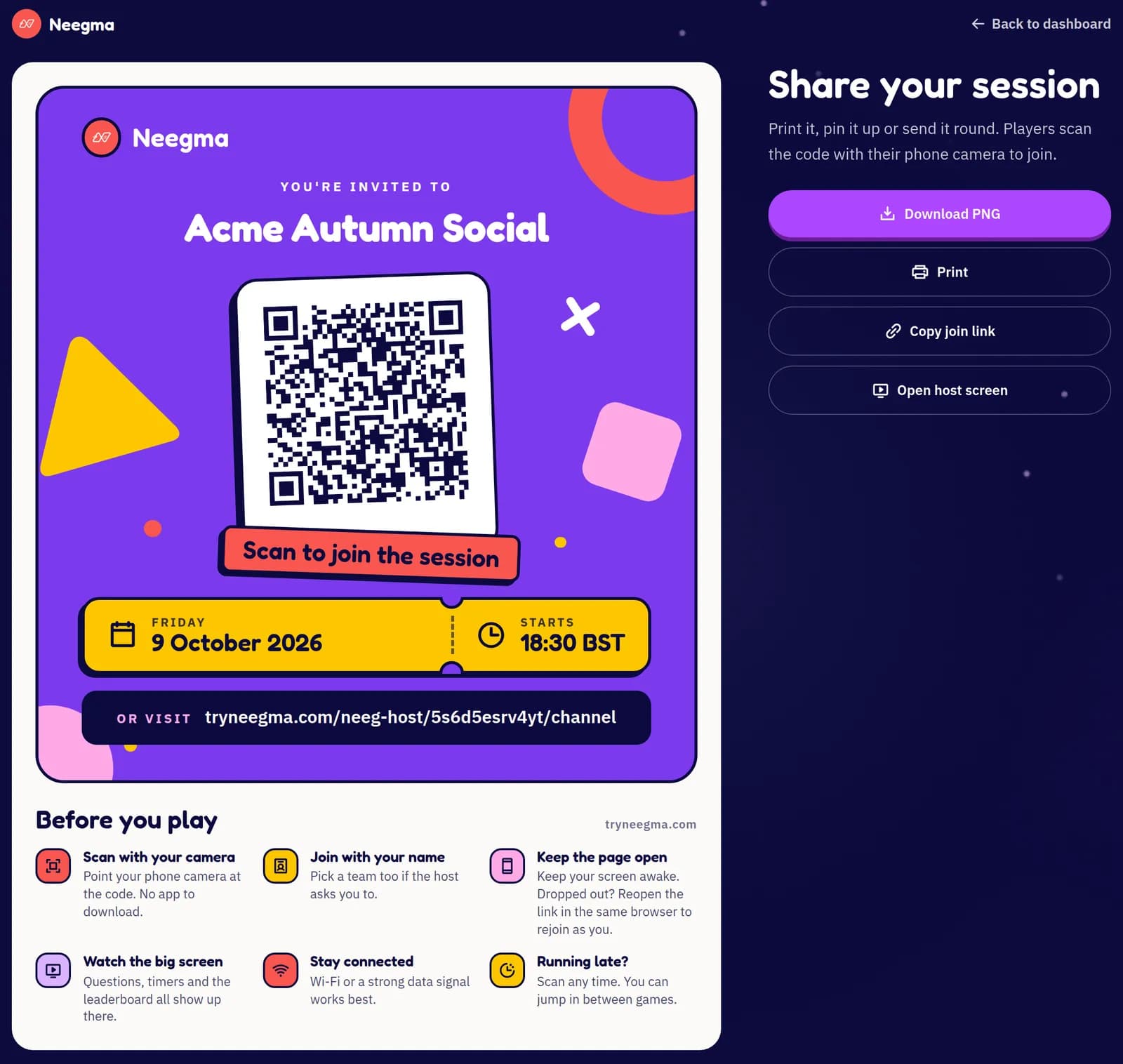
Every session gets a join link, a QR code and a printable poster. Guests scan, type their name and they are in.
Nobody downloads an app or makes an account. Put the poster on tables, at the entrance or in your invite, and people can join the moment they arrive.
Latecomers welcome. Open Share in the top bar any time to show the QR code again.
Dropped out?. Players reopen the link in the same browser and come straight back as themselves.
Step 3 of 5
Play solo or in teams
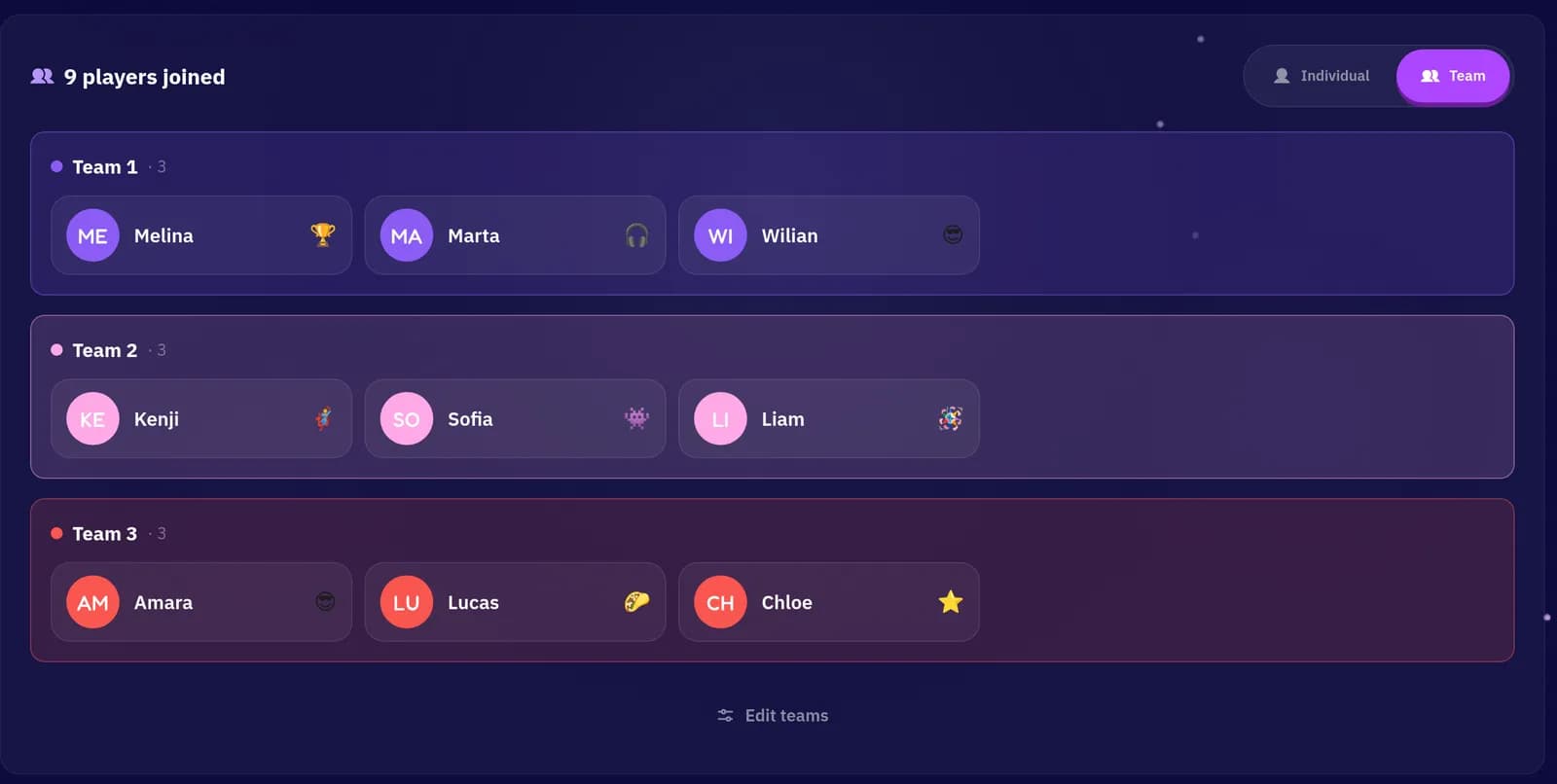
Switch your lobby between Individual and Team play. Players pick their own team as they join.
Teams keep everyone involved, shy guests included. Move people between teams at any time with Edit Teams, and rename teams to suit the crowd.
Step 4 of 5
Play with a live scoreboard
Players answer, vote and guess on their own phones while the big screen shows the action.
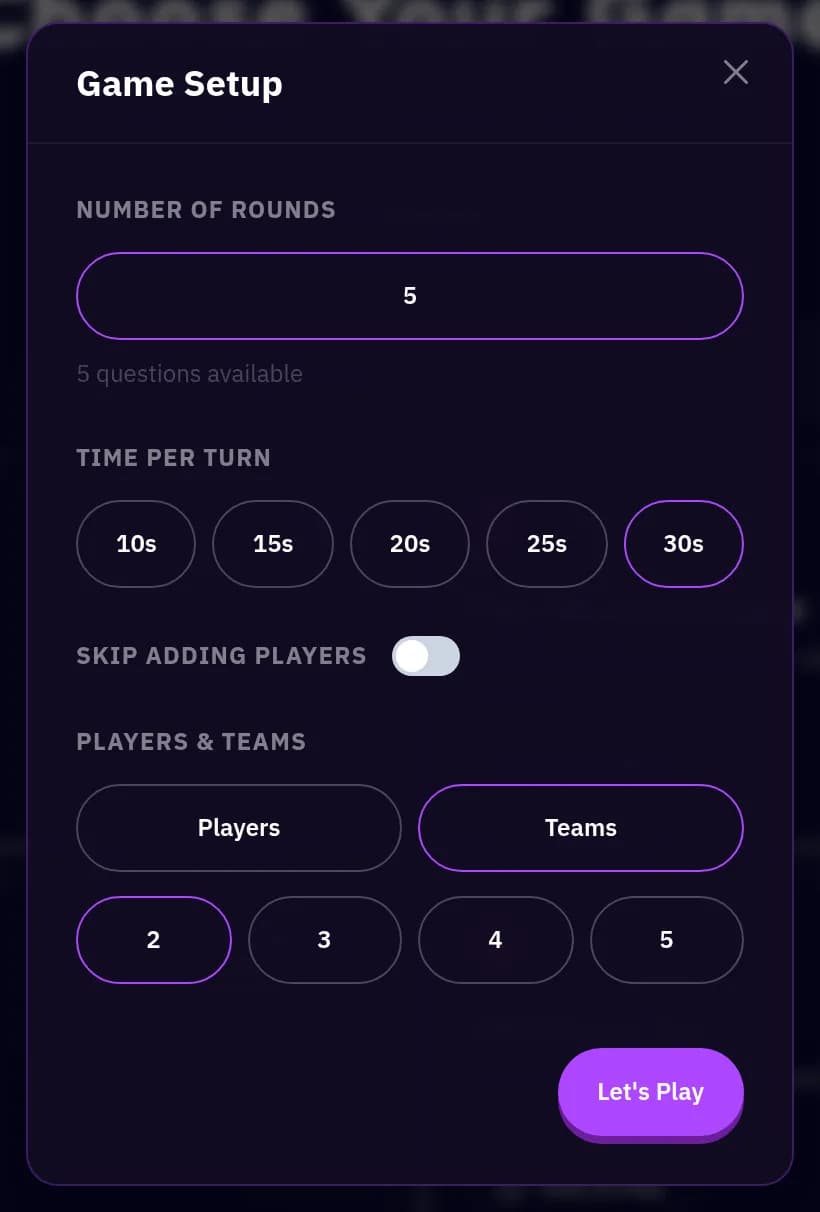
Set up each game in seconds
Pick a game and choose the rounds, the time per turn and any options it has, then press Let's Play.
A leaderboard after every game
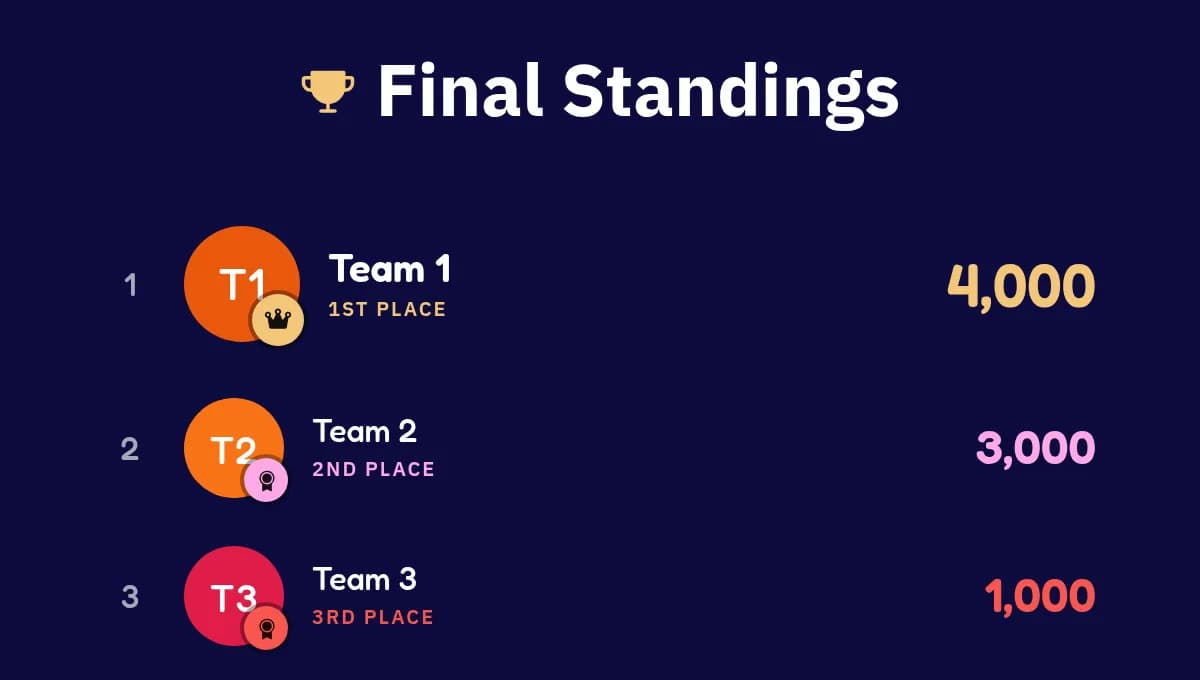
Each game ends on its own standings, and the overall leaderboard adds up the whole session. Finish on the podium and share the results.
Step 5 of 5
See how it went
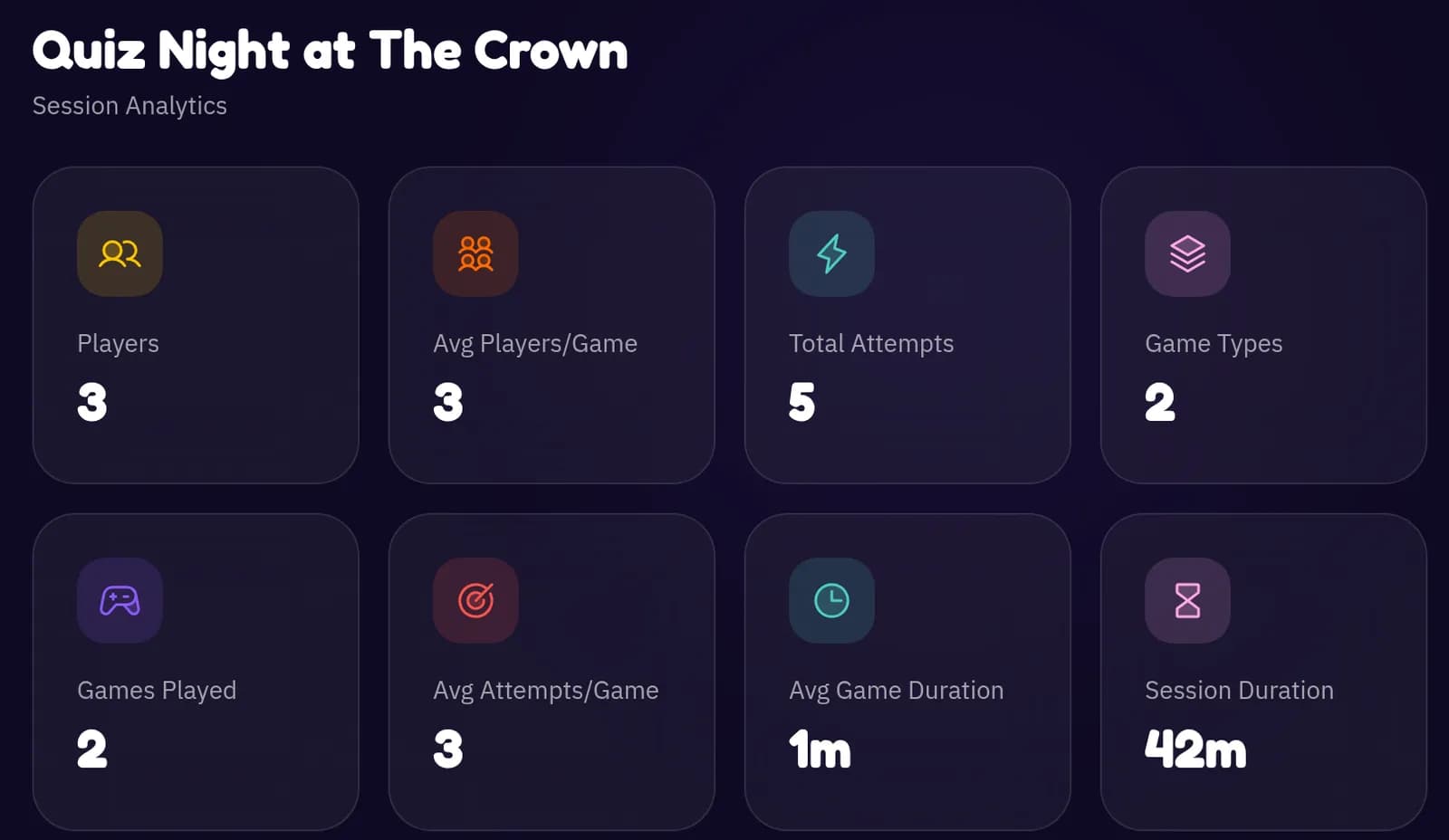
Once the last game ends, your session's numbers are waiting in the dashboard.
See how many people played, which games ran, how many attempts there were and how long each game lasted, so you know what to lead with next time.
17 games
Every game in the library plays live
From fast word games to social deduction, every game runs with players on their phones.
- Find the Mole3 to 20 players
- Villagers & Wolves5 to 30 players
- Song Association2 to 50 players
- Charades4 to 50 players
- Taboo4 to 50 players
- Two Truths & a Lie3 to 30 players
- Who Said It3 to 20 players
- Telepathy3 to 20 players
- Concentration3 to 20 players
- Crack the Code2 to 50 players
- Trivia2 to 200 players
- Unscramble2 to 200 players
- Missing Letter2 to 200 players
- Odd One Out2 to 200 players
- Sub-Words2 to 200 players
- Word Art2 to 50 players
- Bingo2 to 100 players
Questions
Good to know
How many can join?
Free sessions take up to 10 players. Pro covers 100 every session, and a Party Pass goes up to 200 for one big night.
What do players need?
A phone or laptop with a browser and a connection. No app, no sign-up, just their name.
In person or virtual?
Both, and not just for big events. At a casual meetup or a house party, put the host screen on the TV and everyone plays on their phone while you run it. Online, share your screen on Zoom, Teams or Meet.
Your own questions
Build custom sets in the Playground, or let Create with AI draft one from a short brief.
Ready-made running orders
Start from a template and your games, rounds and settings are already lined up.
Schedule ahead
Pick a date and time and guests who scan early see a countdown until you open the doors.
Two ways to host
Live or one-host? Pick per event.
Same host controls, same leaderboards. The difference is who holds a screen.
You are here
Live sessions
Host and players connected
Players join on their own phones by QR code or link, answer from their seats and follow a live scoreboard.
Best for: Virtual events, conferences and big rooms, plus in-person meetups and parties where you run the show.
Host only, no phones
One-host sessions
You run everything from one screen and nobody needs a phone. Players answer out loud and you keep score.
Best for: Quick quiz formats, live events and stage shows, parties, workshops and venues with poor signal.
Explore one-host sessionsThe Event Playbook
8 steps to a great Neegma event
Everything you need to run Neegma in the room or on a call: create and schedule your event, share a printable QR poster, and keep every guest playing.
Read the playbook